

Prerequisites
- Docker Desktop
- An API key from a model provider
Step-by-step Guide
Install tools
- Install Docker Desktop
- Install uv (Python package manager)
Verify it works
Open http://localhost:8000/docs to see your AgentOS API: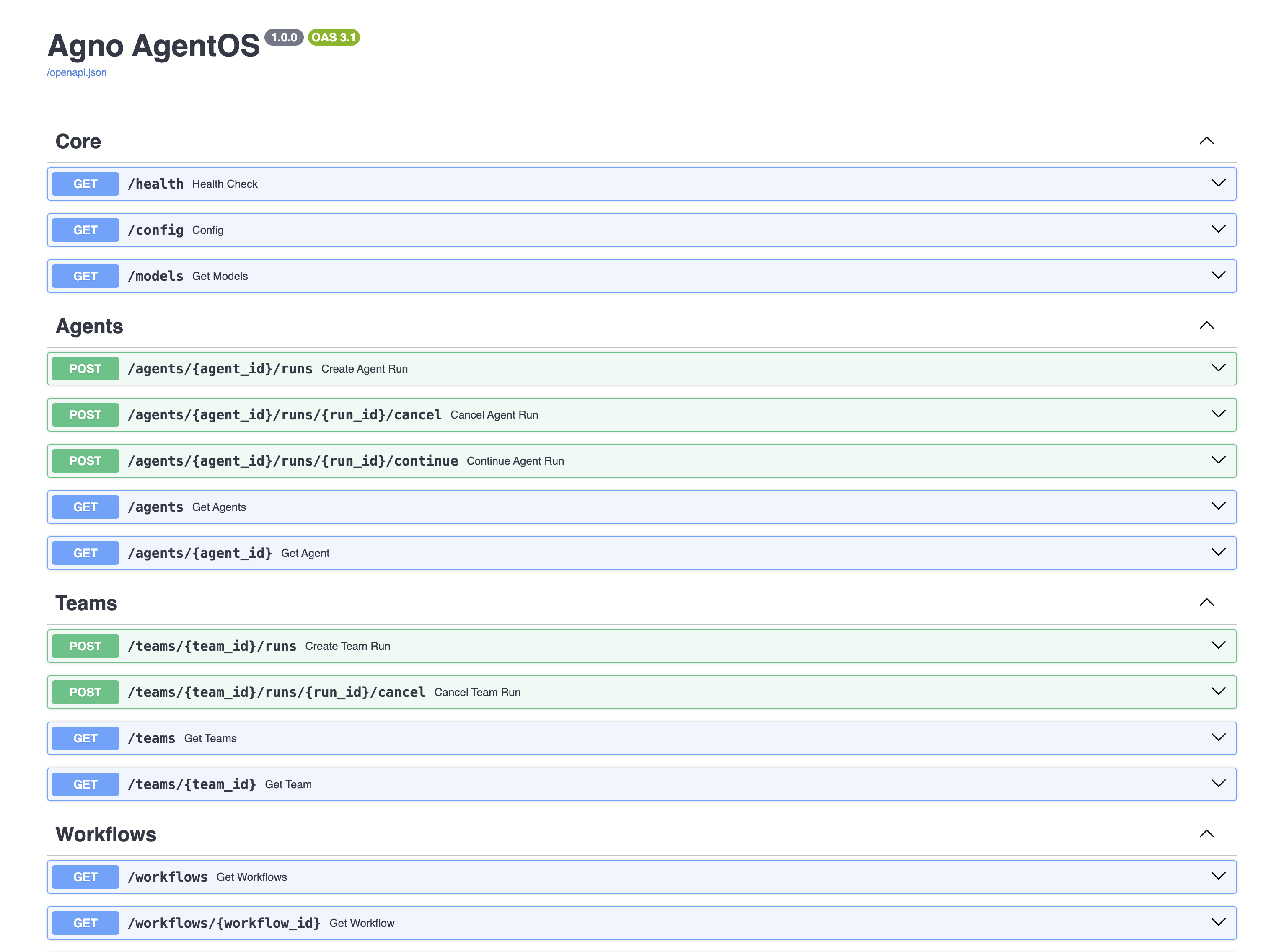
Connect your AgentOS to the control plane
- Open os.agno.com
- Click “Connect OS” and select “Local”
- Enter
http://localhost:8000
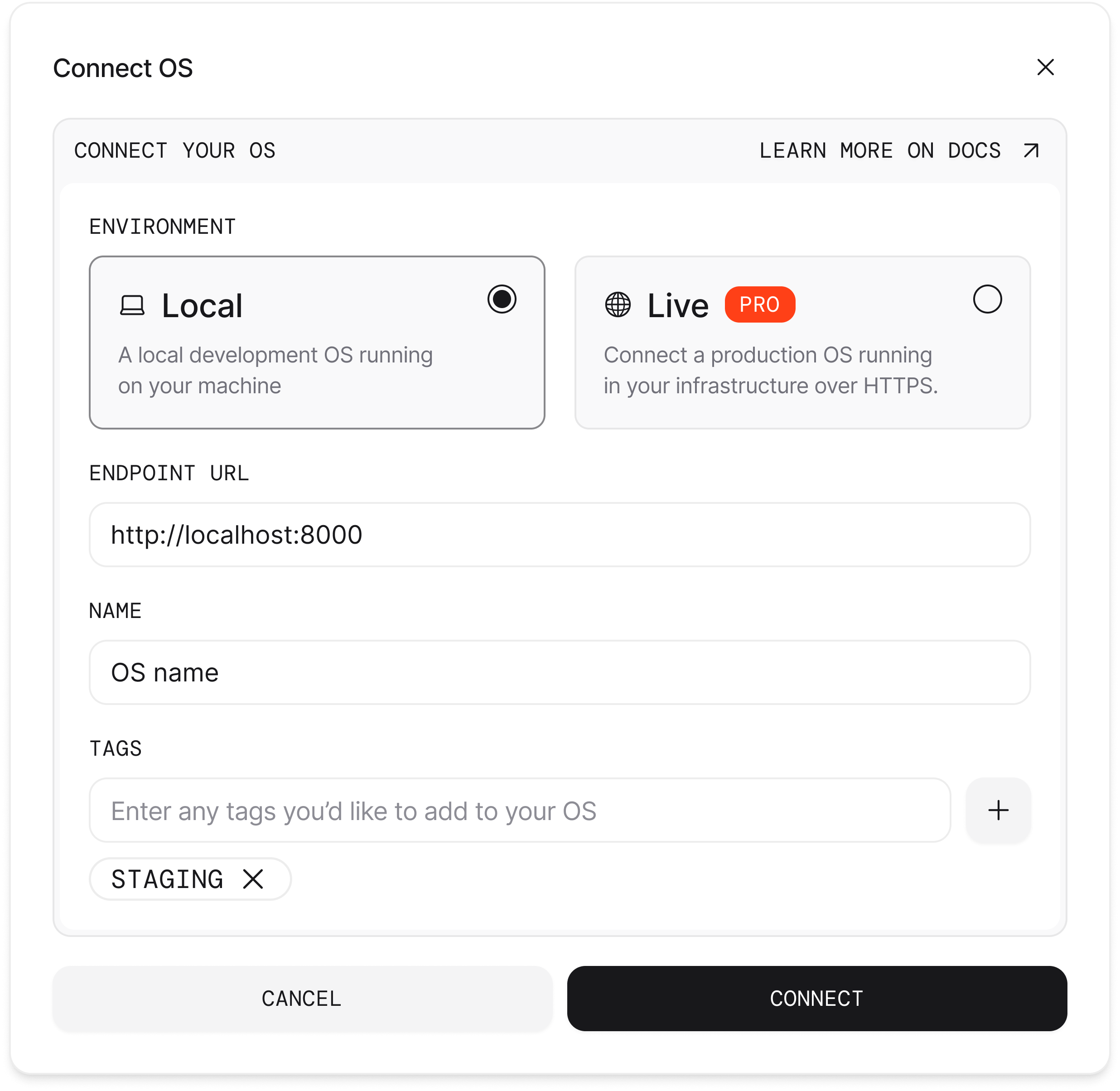
http://localhost:8000.Tips
Cloud Deployment
Cloud Deployment
You can also deploy this template to any cloud that supports Docker.
- Cloud providers: AWS ECS, Google Cloud Compute Engine, Azure Virtual Machines
- Platforms: Railway, Render, DigitalOcean, Fly.io, Modal
Hot reload
Hot reload
Changes to agents, teams, and workflows are reflected automatically.
Environment variables
Environment variables
Restart containers when updating environment variables.
Common commands
Common commands
| ag infra | docker compose | Description |
|---|---|---|
ag infra up | docker compose up -d --build | Start containers |
ag infra down | docker compose down | Stop containers |
ag infra restart | docker compose restart | Restart containers |
docker compose logs -f | View logs |
Project structure
Project structure
Troubleshooting
Port already in use
Port already in use
Modify
compose.yml: yaml ports: - "8080:8000" # Change 8000 to 8080 Database connection issues
Database connection issues
Ensure PostgreSQL is running:
bash docker compose ps If the database
isn’t ready, wait a few seconds and try again.