Connecting to TablePlus
Inspect your pgvector container's sessions and knowledge tables with TablePlus.
Use TablePlus to inspect the tables Agno creates in your pgvector container: sessions, memories, and knowledge embeddings.
Step 1: Start Your pgvector Container
docker run -d \
  -e POSTGRES_DB=ai \
  -e POSTGRES_USER=ai \
  -e POSTGRES_PASSWORD=ai \
  -e PGDATA=/var/lib/postgresql \
  -v pgvolume:/var/lib/postgresql \
  -p 5532:5432 \
  --name pgvector \
agnohq/pgvector:18POSTGRES_DB=aisets the default database name.POSTGRES_USER=aiandPOSTGRES_PASSWORD=aidefine the database credentials.- The container exposes port
5432, mapped to5532on your local machine.
Step 2: Create the Session Table
Agno creates database tables when a database-backed feature first uses them. Run this example to create the default agno_sessions table:
from agno.agent import Agent
from agno.db.postgres import PostgresDb
from agno.models.openai import OpenAIResponses

db = PostgresDb(db_url="postgresql+psycopg://ai:ai@localhost:5532/ai")

agent = Agent(
    model=OpenAIResponses(id="gpt-5.4-mini"),
    db=db,
)
agent.print_response("What is the capital of France?", session_id="tableplus-demo")
Set up your virtual environment
uv venv --python 3.12
source .venv/bin/activate
Install dependencies
uv pip install -U agno openai "psycopg[binary]" sqlalchemyExport your OpenAI API key
export OPENAI_API_KEY="your_openai_api_key_here"Run the example
Save the code as create_session.py, then run:
python create_session.pyOnly table types exercised against this database appear. Run the Postgres memory guide to create memory tables and the PgVector guide to create knowledge tables.
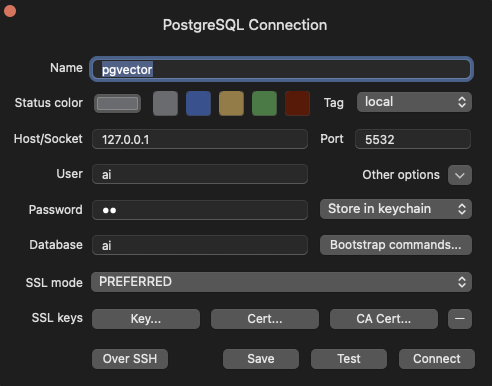
Step 3: Configure TablePlus
- Launch TablePlus.
- Click the
+icon to add a new connection. - Choose PostgreSQL as the database type.
Fill in the connection details:
- Host:
localhost - Port:
5532 - Database:
ai - User:
ai - Password:
ai