Run your agents from the UI, API or MCP
Learn how to run your agents from the AgentOS UI, API, or MCP server.
Once your agents are live, you can run them through the AgentOS UI, call them from your application through the API, or connect them to an AI application through MCP. All three connect to the same running platform.
| Connection | Use it when |
|---|---|
| AgentOS UI | You want to chat, inspect runs, and manage your platform. |
| AgentOS API | You want to use an agent in your own application or workflow. |
| AgentOS MCP | You want another AI application or coding agent to use your platform's capabilities. |
AgentOS UI
Open os.agno.com and select your AgentOS. Choose Daily Brief and start a conversation:
Generate today's edition. Focus on agent frameworks, coding agents,
and developments that matter to an engineering team building AI tools.
Follow up in the same conversation:
Explain the lead story in more detail. What should our team try next?Open the resulting session and trace to inspect the response, tool calls, and sources. Use the UI to review history, manage schedules, and investigate runs as your platform grows.
Build Products using the AgentOS API
The AgentOS API lets you build agentic products by connecting agents to your application. Embed an agent in your product, call it from a backend service, or make it a step in an automated workflow.
Open the /docs page to see the available API endpoints.
Authenticate your application
AgentOS provides your applications with secure, scalable, durable access to agents. In general, your applications act on behalf of users, or services.
When your application acts on behalf of a user, authentication happens through your identity provider and your login flow. Your application sends a signed JWT with each API request.
To configure user authentication, add your issuer's public verification key and matching token settings to your AgentOS. AgentOS verifies the token, reads the user ID from its sub claim by default, and checks the user's permissions. Your authentication system handles sign-in and token issuance; AgentOS uses those tokens to identify and authorize callers. See self-hosted authorization for setup.
For backend jobs and integrations, use a service account with its own identity and permissions. We'll use one here to test the API without integrating your application's login flow. Requests run as the service account rather than an individual user.
From the AgentOS UI, open Manage OS → Service Accounts. Create a service account for your application, choose an expiry, and grant agents:read and agents:run. These grants allow listing and running agents; you can narrow permissions as you build your integration.
Store the returned token in your application's secret settings as AGENTOS_API_TOKEN. The token is shown only when it is created. See Service accounts for token creation, permissions, expiry, and revocation.
Discover and run an agent
First make sure the AGENTOS_URL and AGENTOS_API_TOKEN are available in your environment:
export AGENTOS_URL="https://YOUR-RENDER-DOMAIN"
export AGENTOS_API_TOKEN="agno_pat_***"
List the agents your token can access:
curl --fail-with-body "$AGENTOS_URL/agents" \
  -H "Authorization: Bearer $AGENTOS_API_TOKEN"
Find the agent's id in the response. Run daily-brief with a form-encoded message:
curl --fail-with-body "$AGENTOS_URL/agents/daily-brief/runs" \
  -H "Authorization: Bearer $AGENTOS_API_TOKEN" \
  --form-string "message=Generate today's edition." \
  --form-string "stream=false"
With stream=false, the request waits for the run's response as JSON. Inspect the returned status and content, and keep its run_id and session_id. To continue the conversation, send another message to the same endpoint with that session_id, using the same authenticated identity.
For streamed responses, set stream=true and consume Server-Sent Events.
A service account has its own identity. Its conversation is separate from the one you started as a user in the UI; connecting to the same platform does not automatically share a conversation or its memories.
Connect AI applications using the AgentOS MCP
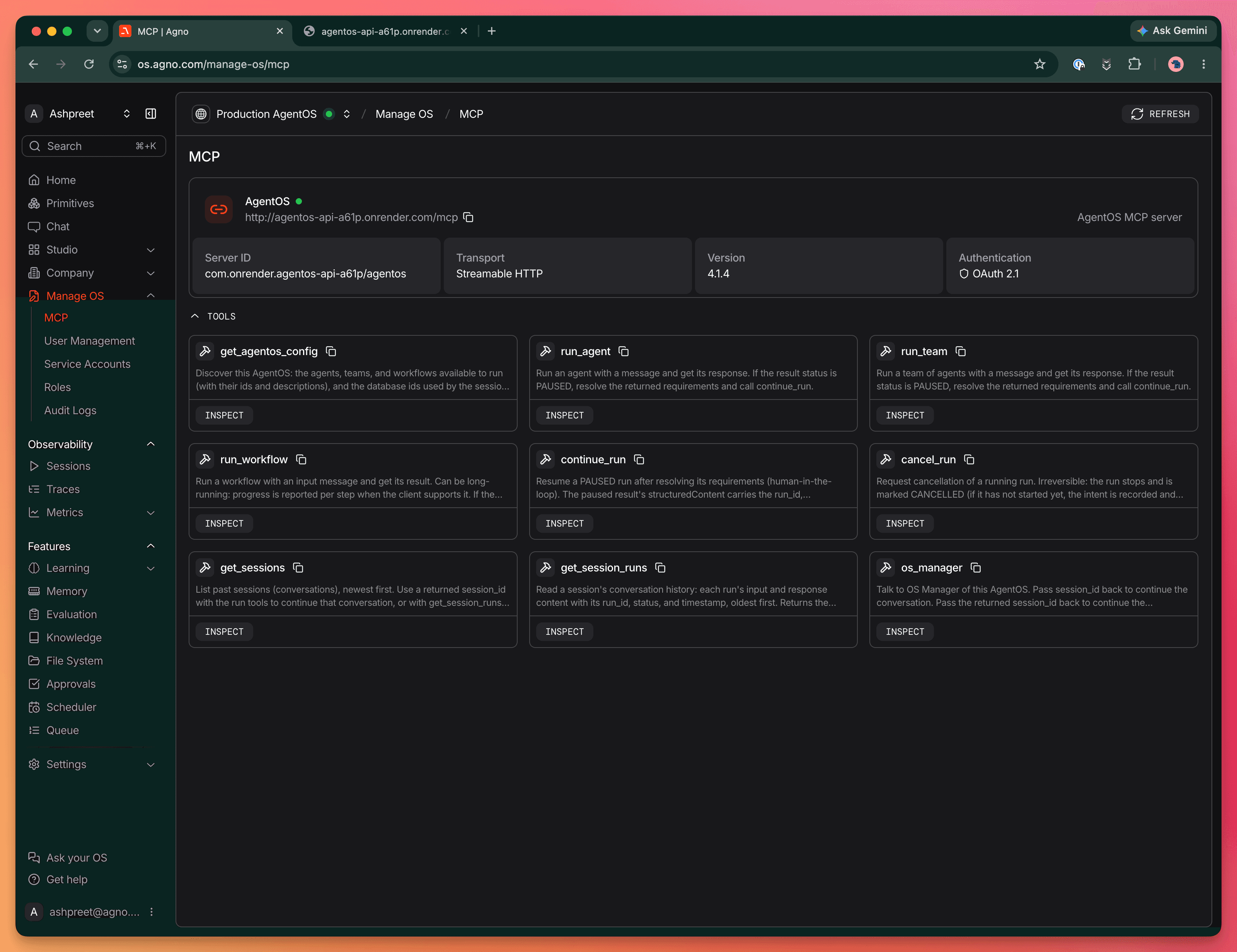
MCP lets AI applications like Claude and ChatGPT discover and call your platform. Your AgentOS comes with built-in tools for running agents, teams, and workflows, plus an os_manager tool for talking to OS Manager.
Let's connect Claude, ChatGPT, and other MCP clients to your platform.
Enable your MCP server
AgentOS provides a built-in MCP server at https://YOUR-RENDER-DOMAIN/mcp.
To connect these applications to your secured platform, enable the built-in OAuth flow:
-
In Render, open your API service's Environment settings and add
MCP_CONNECT_SECRET. -
Set it to a long, random secret from your password manager, or generate one locally:
openssl rand -base64 32 -
Store the secret securely, then choose Save and deploy. You'll use this secret to connect your applications. Keep
RUNTIME_ENV=prdand your JWT settings in place.
Once the deployment is live, add https://YOUR-RENDER-DOMAIN/mcp as a connector in your AI application. The example below uses Claude. Enter the secret on the authorization page to complete the connection, then approve the tools you want the application to use.
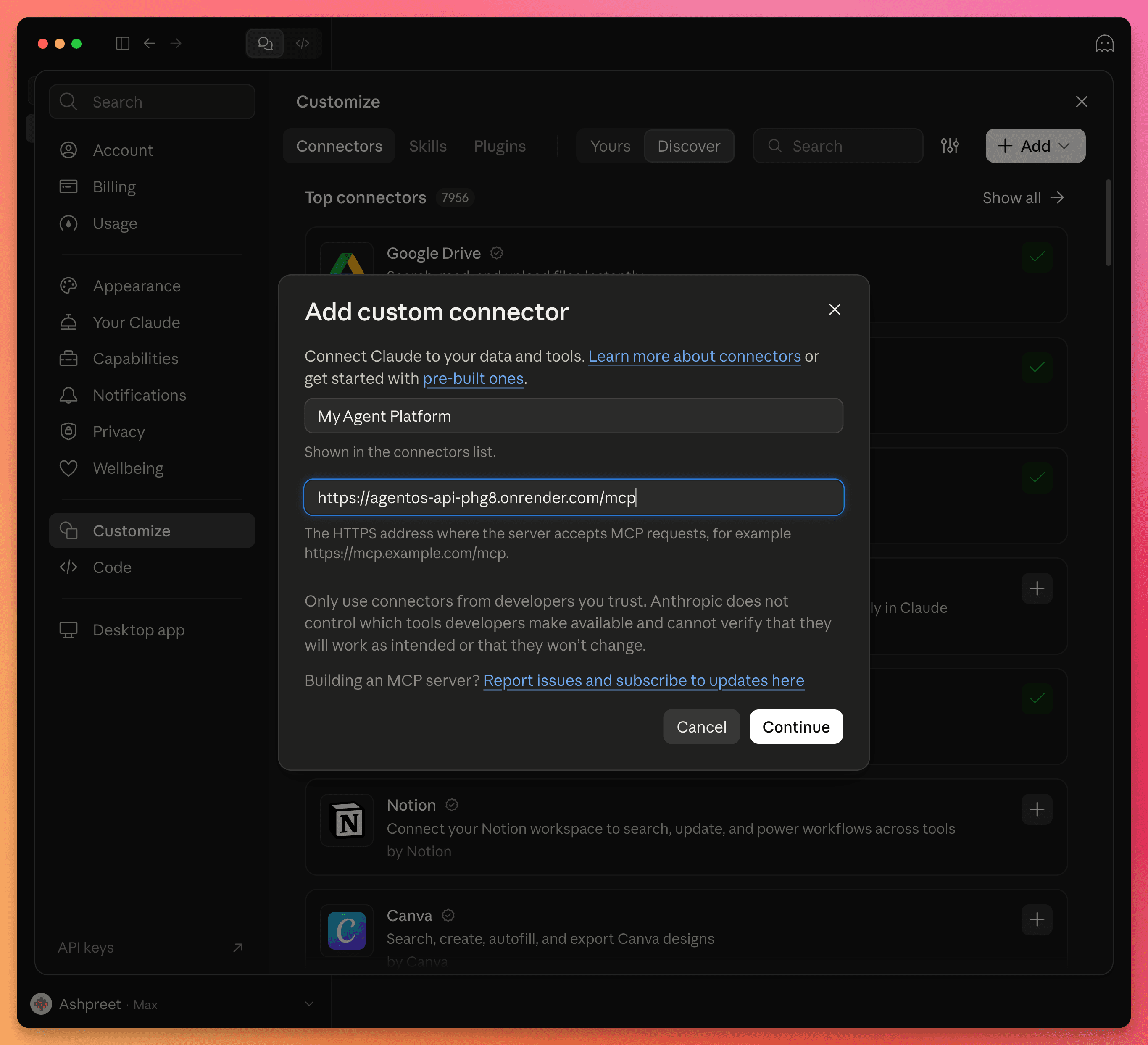
Once connected, ask your AI application:
Use my agent platform to run daily-brief and generate today's edition.
Return the result and keep its session ID so we can follow up.
For a follow-up, ask the client to reuse that session ID. Confirm that it called your platform's tool and returned the agent's result.
View your server URL, authentication details, and available tools in AgentOS under Manage OS → MCP.
Choose the right connection
Use the UI for interactive work and inspection, the API for application integration, and MCP for tool access from another AI application. Each path runs the same agents on your platform.
Next
Improve your agents with simulations, traces, and evaluations.