Deploy to Render
Run your agent platform on Render.
Next, let's deploy your agent platform to Render so you can:
- Run your Daily Brief on a schedule without keeping your computer on.
- Share agents with your team through the UI and API.
- Connect agents to AI applications using MCP.
You'll need a Render account, a GitHub repository and model API keys.
Deploy your platform
Render deploys directly from a GitHub repository. Your codebase comes with a /deploy-platform skill that helps set up your repository and walks you through the process. Run the skill with your coding agent:
/deploy-platformOnce your repository is set up, open the Render dashboard:
- Choose New → Blueprint and select your repository, branch and the root
render.yaml. - Enter your
OPENAI_API_KEYand setRUNTIME_ENVtodev. - Click Deploy Blueprint.
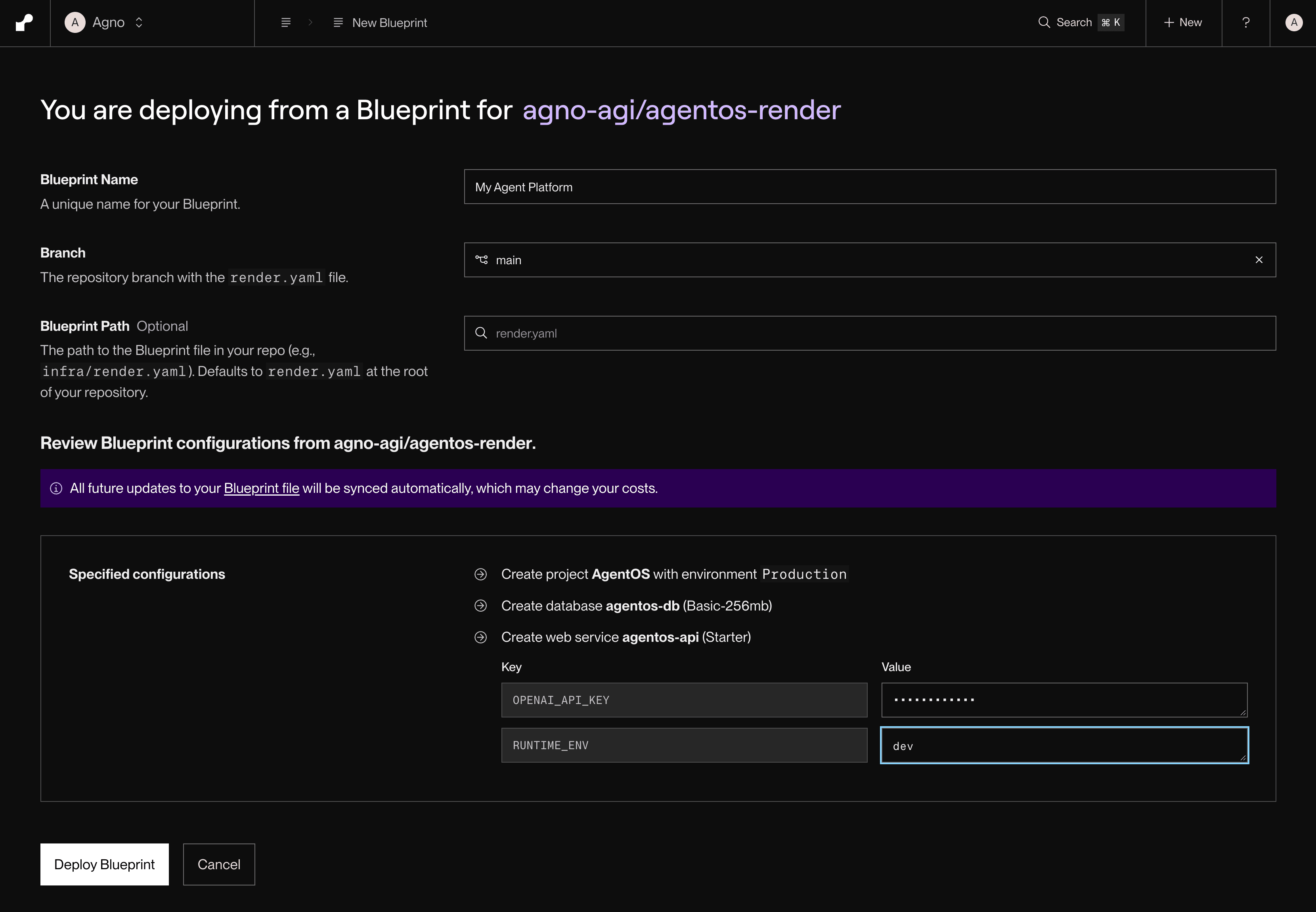
The Render Blueprint creates an AgentOS project with an agentos-api service and a PostgreSQL database.
Connect the UI
- Open your API service in Render and copy its public URL.
- Open os.agno.com and click New AgentOS.
- Select Connect, then choose Live.
- Enter your public Render URL as the Endpoint URL and name your platform Production AgentOS.
- Click Connect.
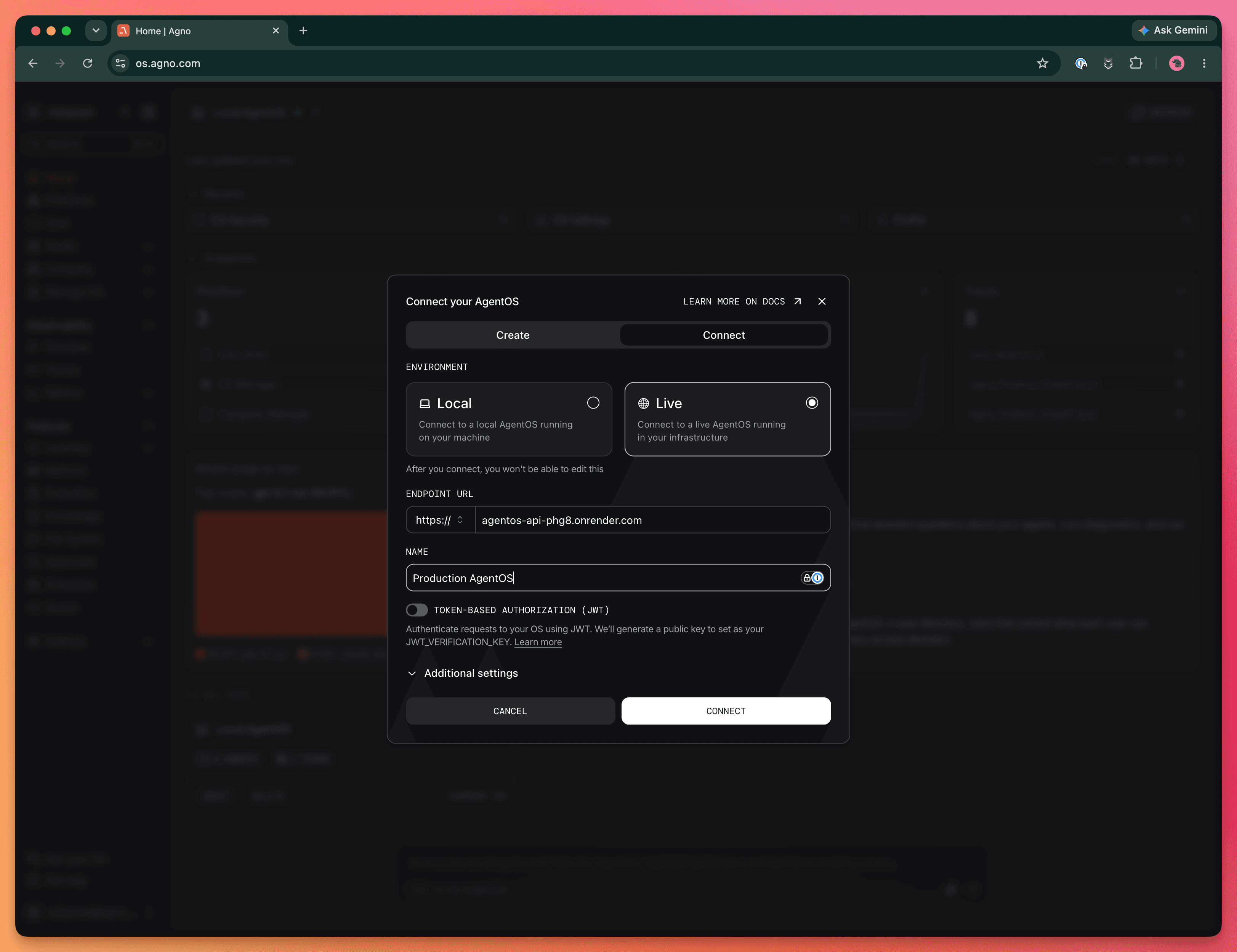
You're now connected to your agent platform. Secure it before adding private data.
Render runs the agent code from your repository, but its database is separate from your local database. Local editions, preferences, and schedules are not copied.
Secure your platform
With RUNTIME_ENV=dev, your deployed platform is publicly reachable without authentication. Anyone with the URL can run agents and access unprotected API endpoints.
Enable JWT authorization so the API verifies each request's identity and permissions.
Open the AgentOS UI, open Settings → OS Security, enable Token-Based Authorization (JWT), and copy the public key.
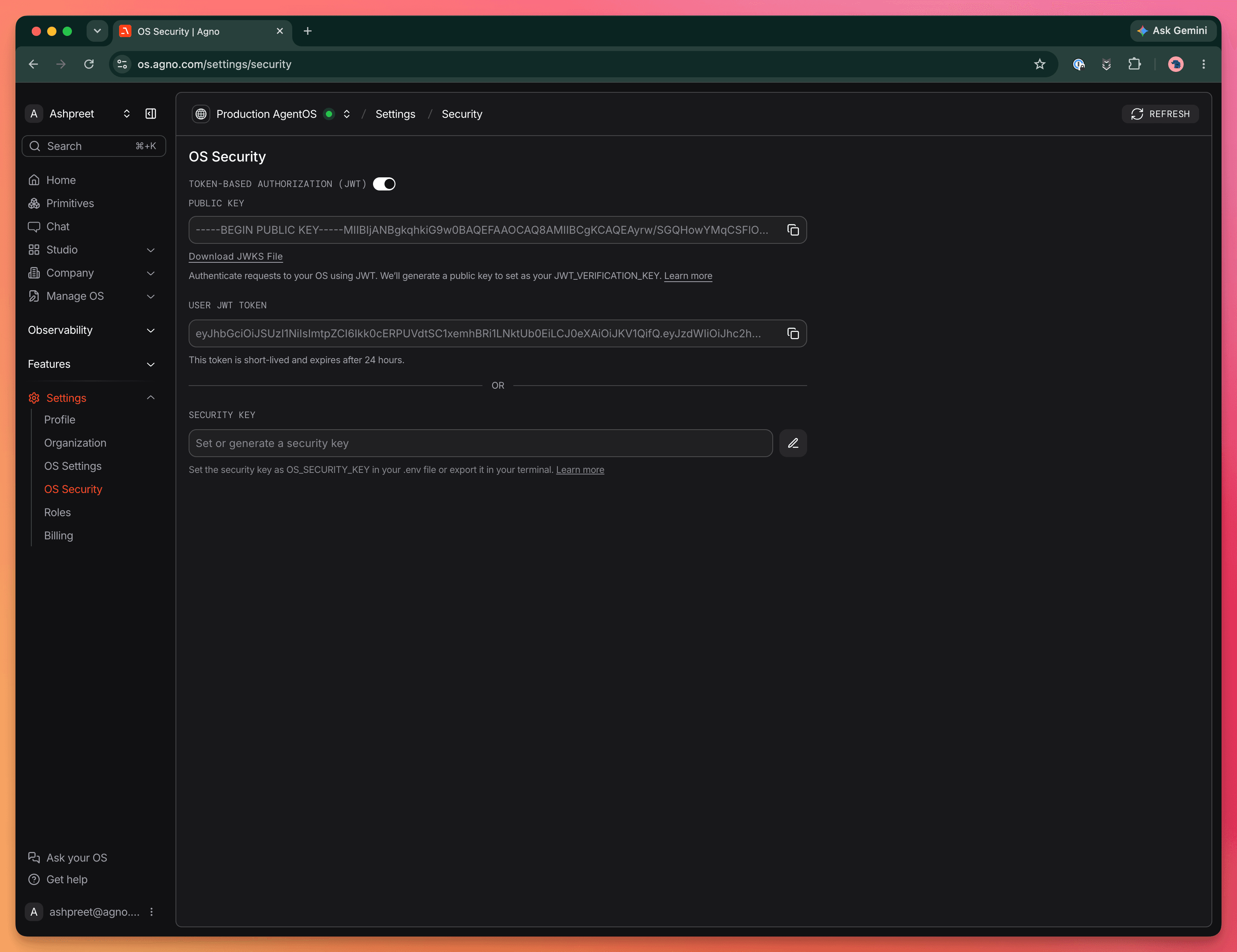
Return to your API service in Render, open Environment, and set these variables:
| Variable | Value |
|---|---|
RUNTIME_ENV | Set to prd to enable authorization. |
AGENTOS_URL | Your public HTTPS Render URL, without a trailing slash. |
JWT_VERIFICATION_KEY | The full public key from AgentOS, including the BEGIN PUBLIC KEY and END PUBLIC KEY lines. Preserve line breaks and omit surrounding quotes. |
Keep your existing OPENAI_API_KEY and database settings. The template declares RUNTIME_ENV with sync: false, so future Blueprint syncs preserve its dashboard value of prd.
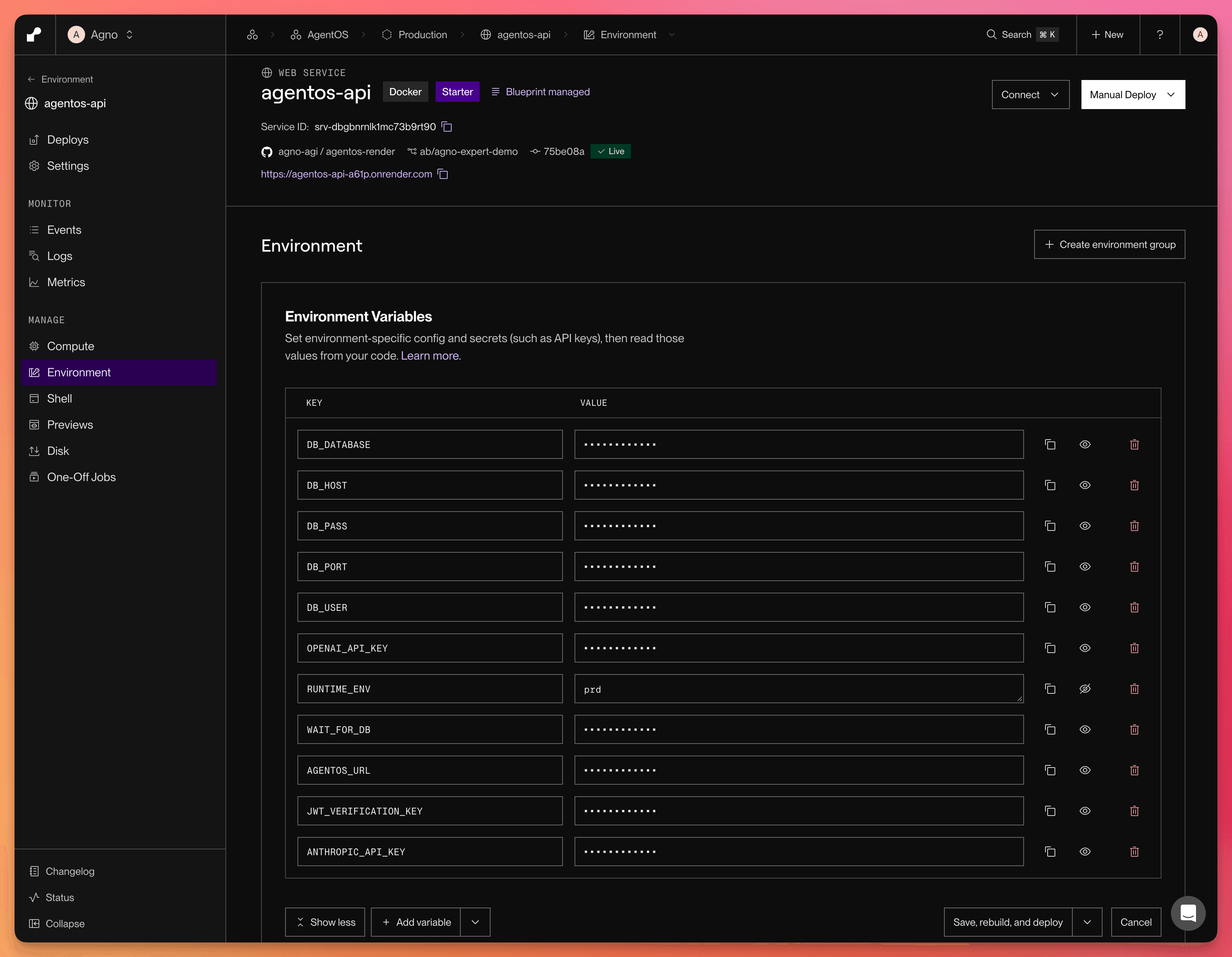
Choose Save, rebuild, and deploy to apply the settings. Check the startup logs and wait for the deployment to go live. Return to AgentOS and confirm you can access your agents. Requests to /agents without a token should now be rejected. /health and /docs remain public.
Run your Daily Brief
Open Daily Brief in your Production AgentOS connection. Give it your preferred topics and ask for today's edition. Check its sources and ask it to remember a preference for future editions. Your local preferences are in a separate database, so set them again on this connection.
Schedule your Daily Brief
In the same Production AgentOS connection, open OS Manager by clicking Ask your OS and ask:
Schedule the daily-brief agent to run daily at 8am UTC.
Use "Generate today's edition" as its input.
Reuse a matching schedule if one already exists.

Trigger the schedule now and verify that its run completes.
Open Schedules and confirm the timezone, input, and completed run. Inspect its session and trace to check the edition. Pause the matching local schedule if you only want production editions.
Enable your MCP server
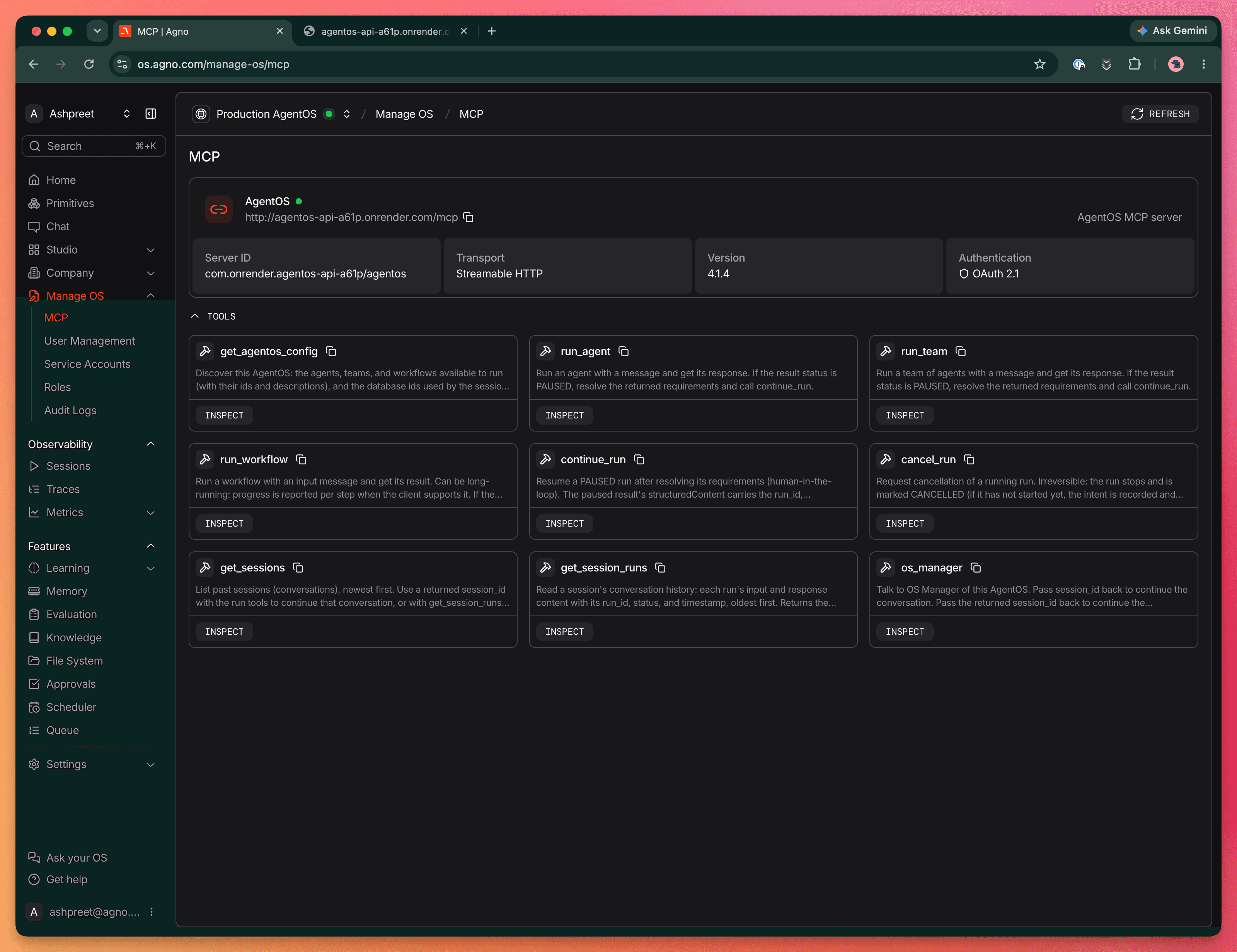
Connect Claude, ChatGPT, and other MCP clients to your platform so they can run your agents and workflows. AgentOS provides a built-in MCP server at https://YOUR-RENDER-DOMAIN/mcp.
To connect these applications to your secured platform, enable the built-in OAuth flow:
-
In Render, open your API service's Environment settings and add
MCP_CONNECT_SECRET. -
Set it to a long, random secret from your password manager, or generate one locally:
openssl rand -base64 32 -
Store the secret securely, then choose Save and deploy. You'll use this secret to connect your applications. Keep
RUNTIME_ENV=prdand your JWT settings in place.
Once the deployment is live, add https://YOUR-RENDER-DOMAIN/mcp as a connector in your AI application. The example below uses Claude. Enter the secret on the authorization page to complete the connection, then approve the tools you want the application to use.
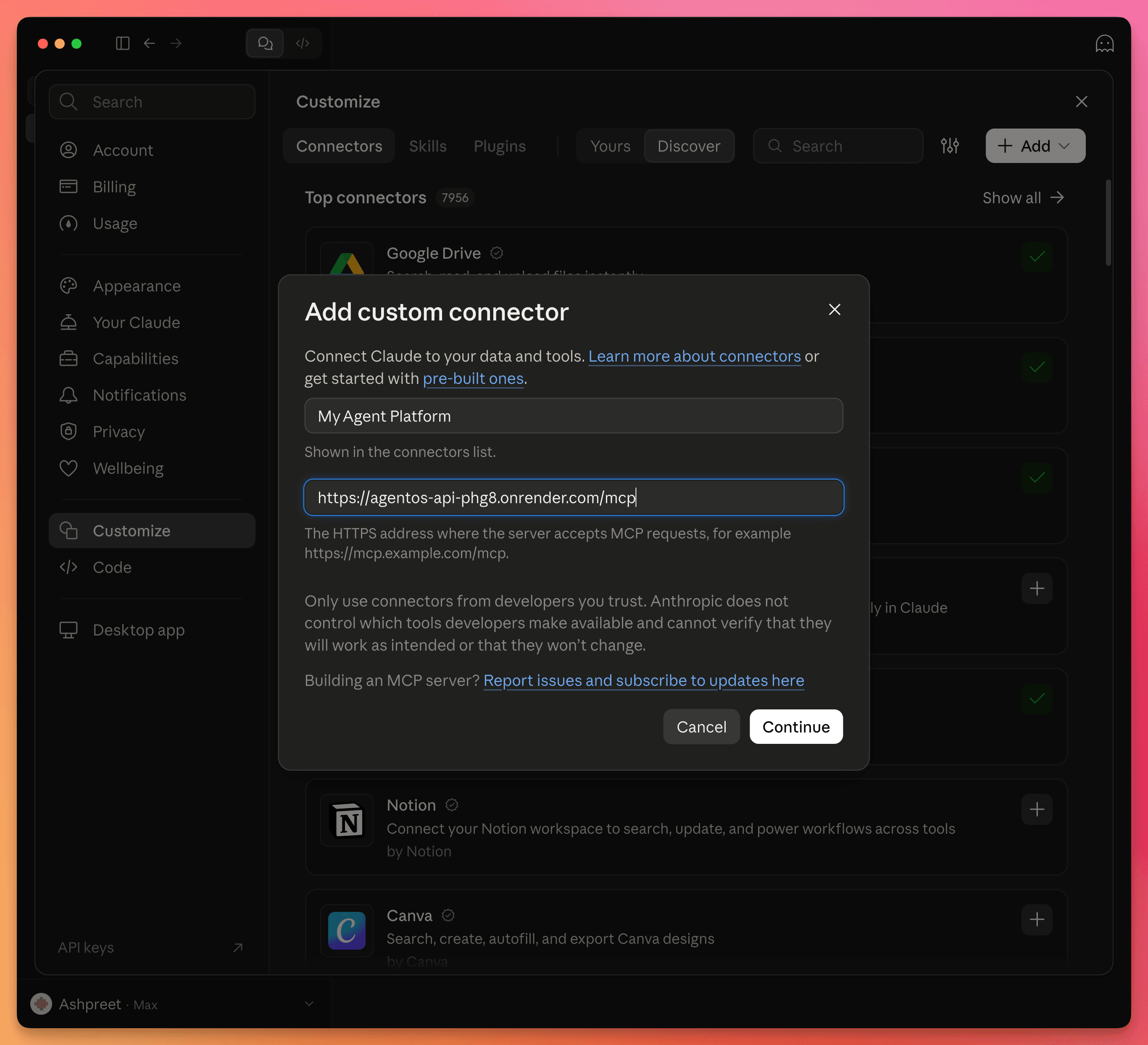
Once connected, ask your AI application: "Check today's daily brief on my agent platform".
View your server URL, authentication details, and available tools in AgentOS under Manage OS → MCP.
Update the platform
Congratulations! Your agent platform is live. As you build, use these steps to update your code, settings, and infrastructure.
| Change | How to apply it |
|---|---|
| Agent or application code | Commit and push to the connected branch. If auto-deploy is disabled, choose Manual Deploy → Deploy latest commit. |
| Production settings | Update the API service's Environment settings and choose Save and deploy. |
| Infrastructure | Update and push render.yaml, then sync the Blueprint. |
After each deployment, check the logs and confirm your agents work in the AgentOS UI.
Next
Next, set up coding agents if you want agents that can edit code and propose improvements. Then use simulations and evaluations to improve your Daily Brief with real interactions.