> ## Documentation Index
> Fetch the complete documentation index at: https://docs.agno.com/llms.txt
> Use this file to discover all available pages before exploring further.
# Add HTTPS
> Add a custom domain and SSL certificate
HTTPS is required to connect your AgentOS to os.agno.com.
## Overview
1. Register a domain (or use an existing one)
2. Create an SSL certificate in AWS ACM
3. Configure your load balancer to use HTTPS
## Step 1: Set Up Your Domain
Register your domain with [Route 53](https://us-east-1.console.aws.amazon.com/route53/) or use an existing domain.
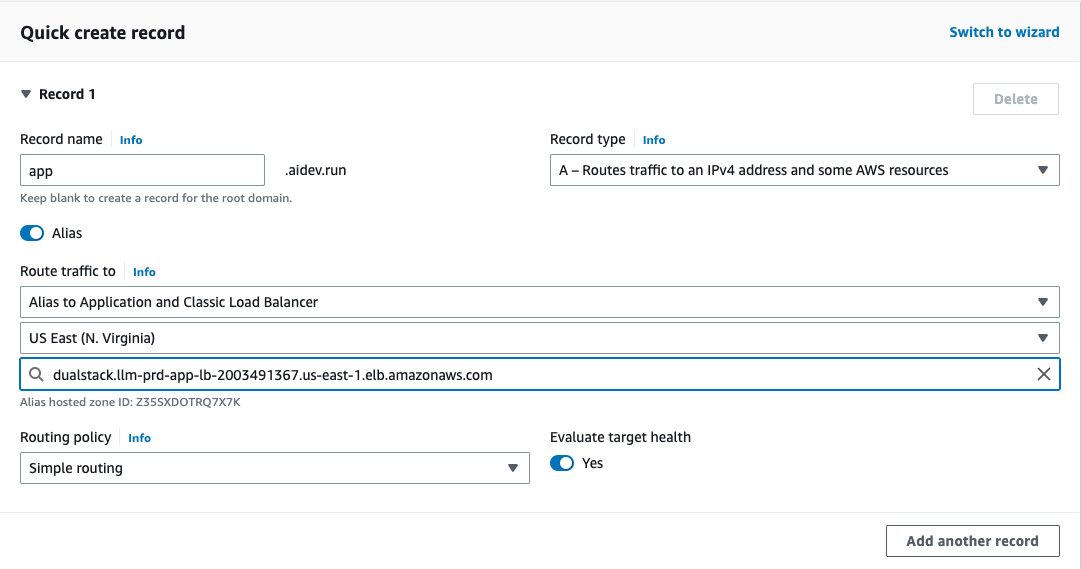
Create an A record pointing to your load balancer:
| Record | Type | Value |
| -------------------- | --------- | ----------------- |
| `api.yourdomain.com` | A (Alias) | Your ALB DNS name |
 ## Step 2: Create SSL Certificate
Go to [AWS ACM](https://us-east-1.console.aws.amazon.com/acm) and request a certificate for your domain (e.g., `*.yourdomain.com` or `api.yourdomain.com`).
## Step 2: Create SSL Certificate
Go to [AWS ACM](https://us-east-1.console.aws.amazon.com/acm) and request a certificate for your domain (e.g., `*.yourdomain.com` or `api.yourdomain.com`).
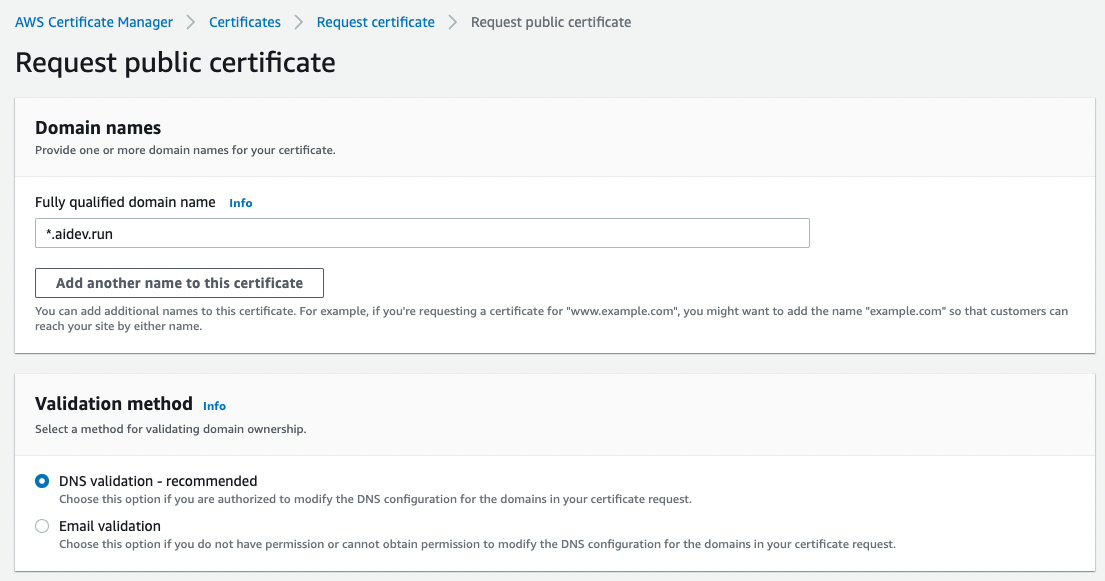 Choose DNS validation. ACM will provide CNAME records to add to Route 53.
Click "Create records in Route 53" to add them automatically.
Choose DNS validation. ACM will provide CNAME records to add to Route 53.
Click "Create records in Route 53" to add them automatically.
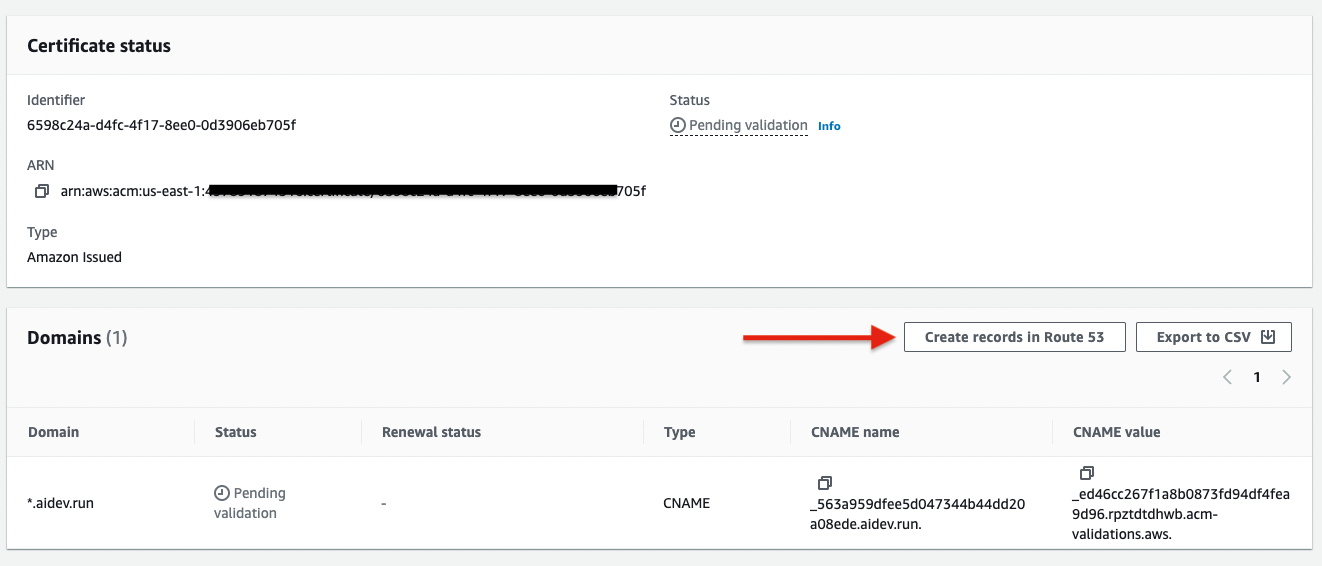 Certificate validation takes 5-30 minutes. Wait until status shows "Issued".
Once issued, copy the ARN. It looks like:
```
arn:aws:acm:us-east-1:[ACCOUNT_ID]:certificate/[CERTIFICATE_ID]
```
## Step 3: Configure Load Balancer
Add the certificate ARN:
```python infra/prd_resources.py theme={null}
prd_fastapi = FastApi(
...
load_balancer_enable_https=True,
load_balancer_certificate_arn="arn:aws:acm:us-east-1:[ACCOUNT_ID]:certificate/[CERTIFICATE_ID]",
)
```
```bash Full Options theme={null}
ag infra up --env prd --infra aws --name listener
```
```bash Shorthand theme={null}
ag infra up prd:aws::listener
```
```bash Full Options theme={null}
ag infra patch --env prd --infra aws --name listener
```
```bash Shorthand theme={null}
ag infra patch prd:aws::listener
```
All HTTP requests now redirect to HTTPS.
## Verify HTTPS Works
```bash theme={null}
curl https://api.yourdomain.com/health
```
Should return:
```json theme={null}
{"status": "ok", "instantiated_at": "..."}
```
## Troubleshooting
| Issue | Solution |
| ----------------------------------- | --------------------------------------------------- |
| Certificate not validating | Check CNAME records in Route 53, wait up to 30 min |
| Certificate not showing in dropdown | Must be in same region as load balancer (us-east-1) |
| HTTPS not working after setup | Run `ag infra patch prd:aws::listener` again |
Certificate validation takes 5-30 minutes. Wait until status shows "Issued".
Once issued, copy the ARN. It looks like:
```
arn:aws:acm:us-east-1:[ACCOUNT_ID]:certificate/[CERTIFICATE_ID]
```
## Step 3: Configure Load Balancer
Add the certificate ARN:
```python infra/prd_resources.py theme={null}
prd_fastapi = FastApi(
...
load_balancer_enable_https=True,
load_balancer_certificate_arn="arn:aws:acm:us-east-1:[ACCOUNT_ID]:certificate/[CERTIFICATE_ID]",
)
```
```bash Full Options theme={null}
ag infra up --env prd --infra aws --name listener
```
```bash Shorthand theme={null}
ag infra up prd:aws::listener
```
```bash Full Options theme={null}
ag infra patch --env prd --infra aws --name listener
```
```bash Shorthand theme={null}
ag infra patch prd:aws::listener
```
All HTTP requests now redirect to HTTPS.
## Verify HTTPS Works
```bash theme={null}
curl https://api.yourdomain.com/health
```
Should return:
```json theme={null}
{"status": "ok", "instantiated_at": "..."}
```
## Troubleshooting
| Issue | Solution |
| ----------------------------------- | --------------------------------------------------- |
| Certificate not validating | Check CNAME records in Route 53, wait up to 30 min |
| Certificate not showing in dropdown | Must be in same region as load balancer (us-east-1) |
| HTTPS not working after setup | Run `ag infra patch prd:aws::listener` again |